
Insurity Geospatial
Deliver market-leading ROI with geospatial analytics purpose-built for P&C insurance
Build a complete view of risk, spanning multiple hazards—including flood, wildfire, hurricane, and more—in a single interactive environment that puts data from 50+ leading hazard, event, and spatial data providers at your fingertips. Empower your catastrophe risk professionals to make analytically-driven decisions across the policy lifecycle with the industry’s most proven geospatial data analytics software, trusted by 200+ carriers, brokers, and MGAs.


Faster Quoting
Streamline underwriting decisions with robust geospatial data analytics software and access to 50+ third-party data providers at your fingertips.

Faster Assessment
Gain a comprehensive view of risk by exploring correlations among exposures, modeled loss, hazards, claims experience, and third-party data.

Lower Claims Costs
Reduce costs and increase customer satisfaction with automated event alerts that enable you to mitigate and respond to catastrophe events in real time.

Increase in DWP
Gain immediate insights and optimize your portfolios for maximum profitability while identifying new opportunities for growth.
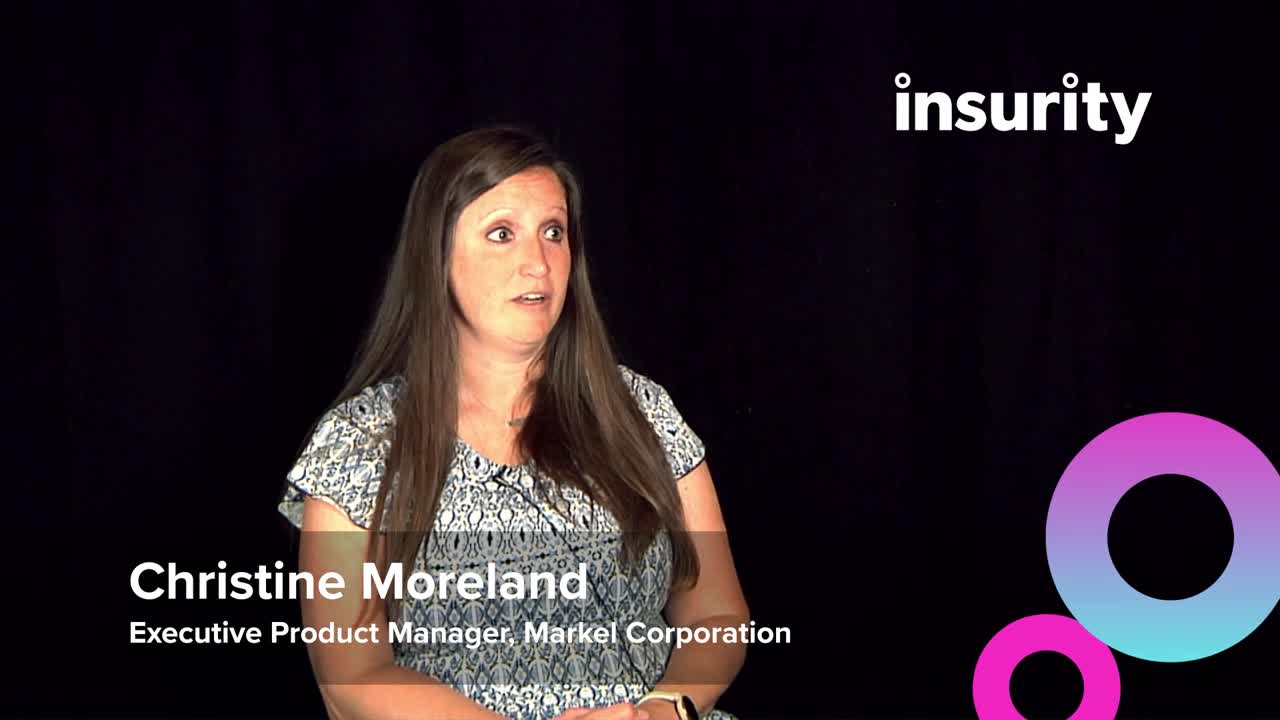
Empowering your underwriters with Insurity Geospatial
Whether it’s a wildfire or other severe weather event, learn how Insurity Geospatial enables the underwriters at Markel Corporation to quickly visualize risk in a certain area to make faster, smarter decisions.
Why Insurity Geospatial?

Start driving ROI in an hour
Be up and running with our turnkey and intuitive cloud-based geospatial data software in as little as one hour—with no IT support. Use our simple integration options to access your data wherever and whenever you need it.

Streamline underwriting
Make faster, more informed decisions and understand your portfolio accumulations prior to binding with mapping software designed for property risk assessment, including access to 18+ perils and 50+ expert data providers.

Understand portfolio risk
Enable a comprehensive view of risk by exploring correlations among exposure, loss, hazard, claims, and market data, as well as examining risk drivers and regional concentrations—all within a single platform.

Proactively respond to events
Stay in-the-know with automated event alerts and analyses that notify you with the analytics you need to understand financial impact, formulate your response, and provide proactive outreach during a catastrophic event.
Make Data a Differentiator: Access 50+ Hazard and Event Data Providers


Resources

Insurity Geospatial Solution Overview
Empower data driven decision-making with the industry’s most proven geospatial analytics software.

Insurity Event Response Guide: How to Automate Your Event Response
Employing proprietary and industry research, the guide identifies how insurers can dramatically reduce time spent on event response with intuitive, proactive data analysis.

Insurity Geospatial: Event Response
Learn how Holborn, a leading reinsurance broker, provided more accurate and timely information during severe weather events.
Insurity Geospatial includes SpatialKey and Maprisk.
Book a demo
